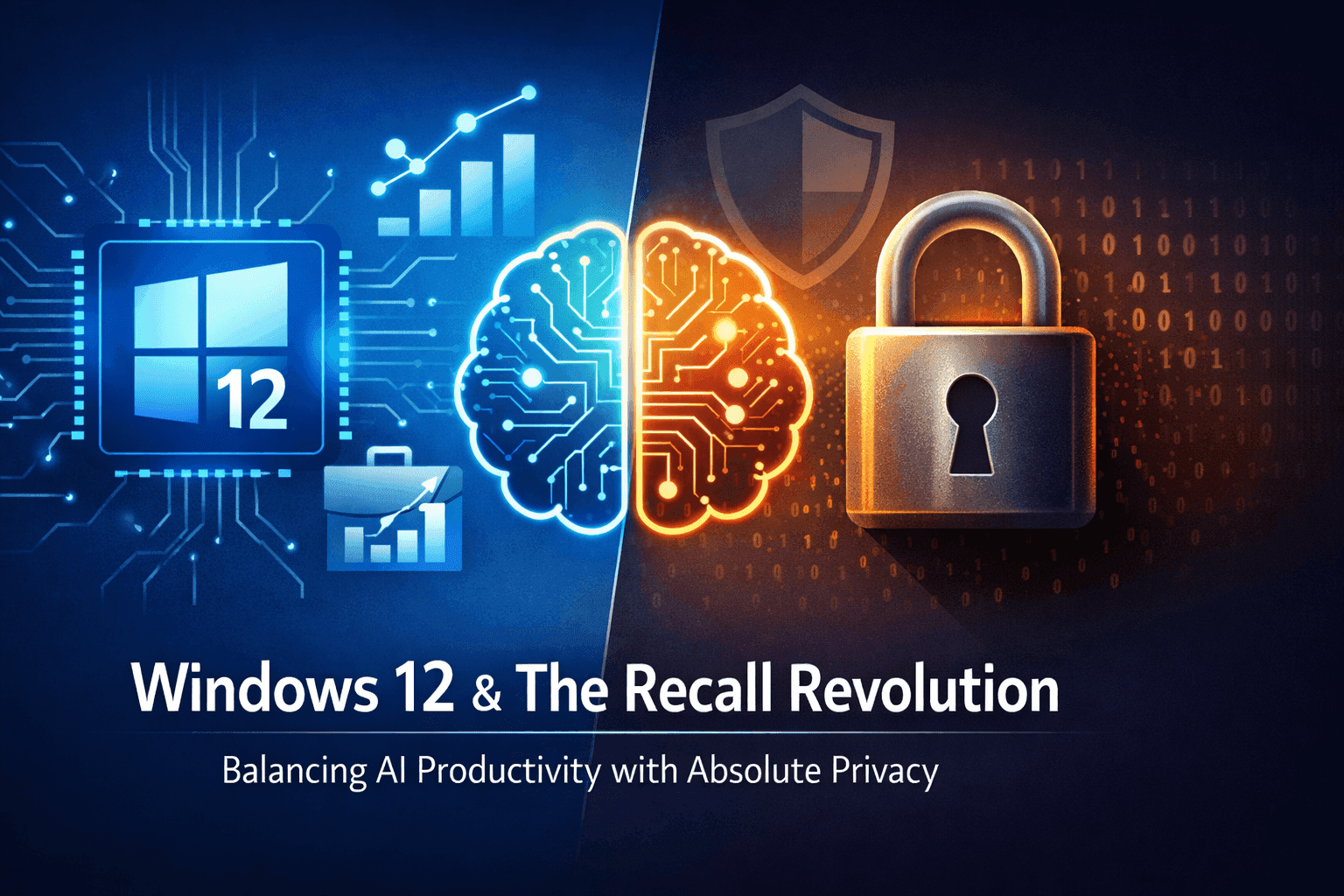
Windows 12: The AI-First OS — Understanding "Recall" and Reclaiming Your Privacy
With the release of Windows 12, Microsoft has officially moved beyond the traditional operating system. We are now in the era of the AI-PC. While the integration of specialized AI hardware (NPUs) brings incredible speed, it also introduces features that have sparked intense debate across the US and Europe: Windows Recall.
For privacy-conscious users, understanding how this technology works—and how to control it—is no longer optional.
1. What is Windows Recall?
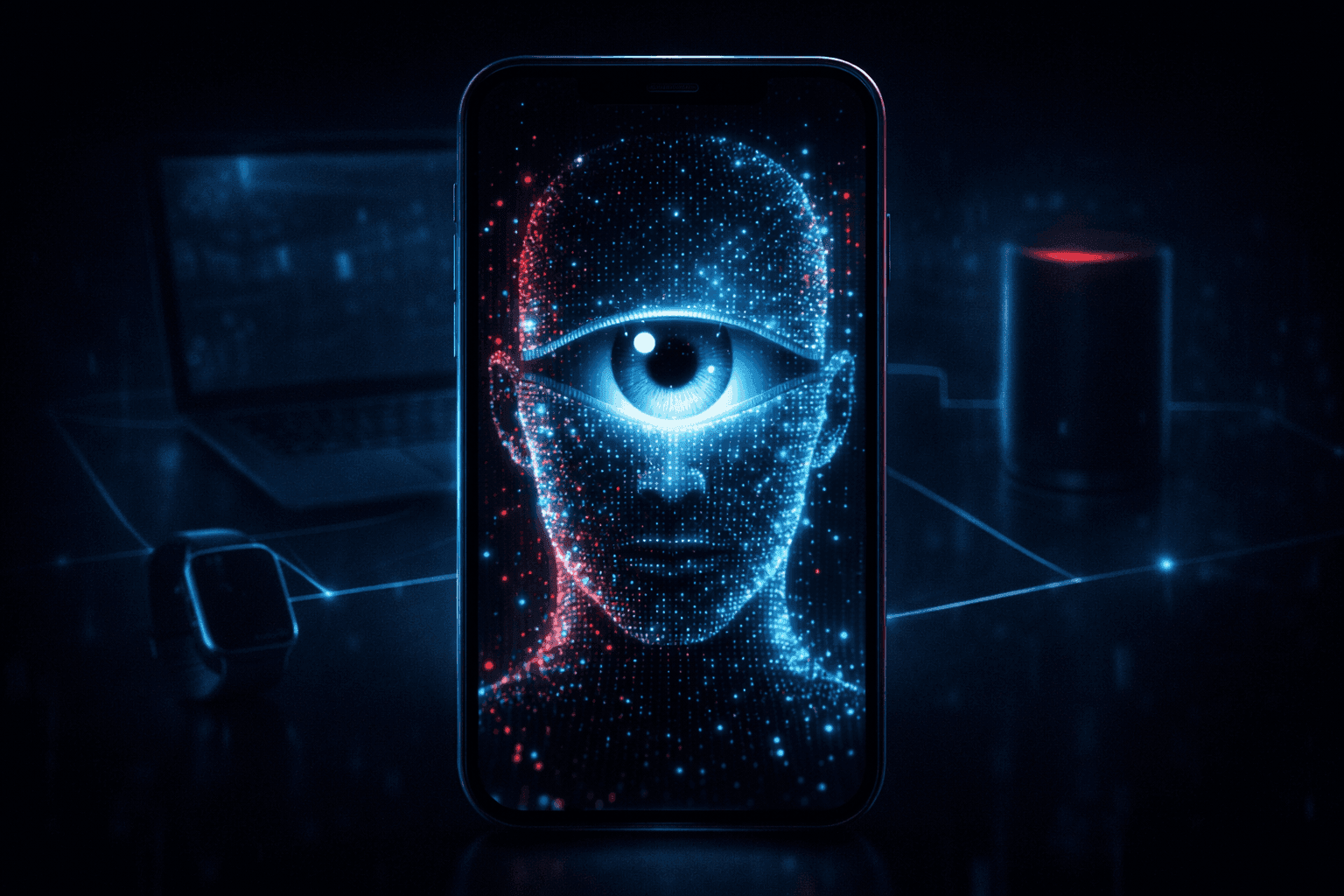
Imagine your computer has a photographic memory. Recall works by taking encrypted snapshots of your screen every few seconds. It then uses on-device AI to let you search for anything you’ve ever seen or worked on using natural language.
- The Promise: You can search for "that blue sofa I saw on a website last week" or "the spreadsheet about Q3 budget," and Windows will instantly find it.
- The Concern: This means the OS is technically "watching" everything—from private emails to sensitive financial data.
2. Analyzing the Privacy Risks
In the European Union, where GDPR sets a high bar for data protection, Microsoft has faced significant scrutiny. The primary risks include:
- Snapshot Sensitivity: By default, Recall may capture passwords, credit card numbers, or private chats if they are visible on the screen.
- Local Storage vs. Cloud: While Microsoft emphasizes that the data is stored locally and encrypted on your device, the mere existence of a "searchable history of your life" is a high-value target for sophisticated malware.
3. How to Disable Invasive Tracking in Windows 12
If you prefer a traditional, private computing environment, Windows 12 allows you to customize or completely disable these AI tracking features.
Step A: Disable Recall Completely
- Go to Settings > Privacy & Security.
- Select Recall & Snapshots.
- Toggle the "Save snapshots" switch to Off.
- Click "Delete snapshots" to clear any previously recorded history.
Step B: Filtering Sensitive Apps
If you like the feature but want to protect certain data, you can add "Filters":
- In the same Recall & Snapshots menu, select "Filtered Apps."
- Add your Banking apps, Password Managers, and Private Browsers to the list. Windows will now "go blind" whenever these apps are open.
4. The Performance Impact: AI vs. Battery
Windows 12 is optimized for ARM-based chips and NPUs (Neural Processing Units). Even if you disable Recall, the AI-First architecture offers benefits:
| Feature | Impact if AI is On | Impact if AI is Off |
|---|---|---|
| Search Speed | Near-instant (Semantic) | Traditional (Keyword-based) |
| Battery Life | Optimized via NPU | Standard consumption |
| Data Privacy | High-visibility tracking | Maximum user privacy |
5. Verdict: Is Windows 12 for You?
Windows 12 is a powerful tool for professionals in high-paced environments in New York or London who need to find information instantly. However, for those in legal, medical, or high-security sectors, the "Security-First" approach should be to disable Recall and use AI features selectively.
🛡️ The Windows 12 Privacy Checklist (Quick Setup)
| Action Item | Recommended Setting | Why? |
|---|---|---|
| Windows Recall | OFF | prevents continuous screen snapshots. |
| Diagnostic Data | Required Only | Stops Microsoft from collecting optional usage info. |
| Tailored Experiences | OFF | Prevents personalized ads based on your behavior. |
| App Permissions | Review Monthly | Ensures apps don't access camera/mic unnecessarily. |
| Activity History | Clear & Disable | Prevents syncing your timeline across devices |